



















The next generation of Marvin
The new Marvin is a universal chemical editor that serves the needs of any chemist involved in research and drug discovery.
It is web-based with a rich feature set to serve both as your main chemical sketcher and integrate with your tools from ELNs to registration systems and even Microsoft Office. Its state-of-the-art UI with familiar shortcuts allow you to draw quickly.
Marvin gives you access to Chemaxon’s industry-standard chemical intelligence to catch errors, and perform live calculations and predictions. Use a wide range of built-in tools to create publication-worthy chemical schemes.
Quick drawing
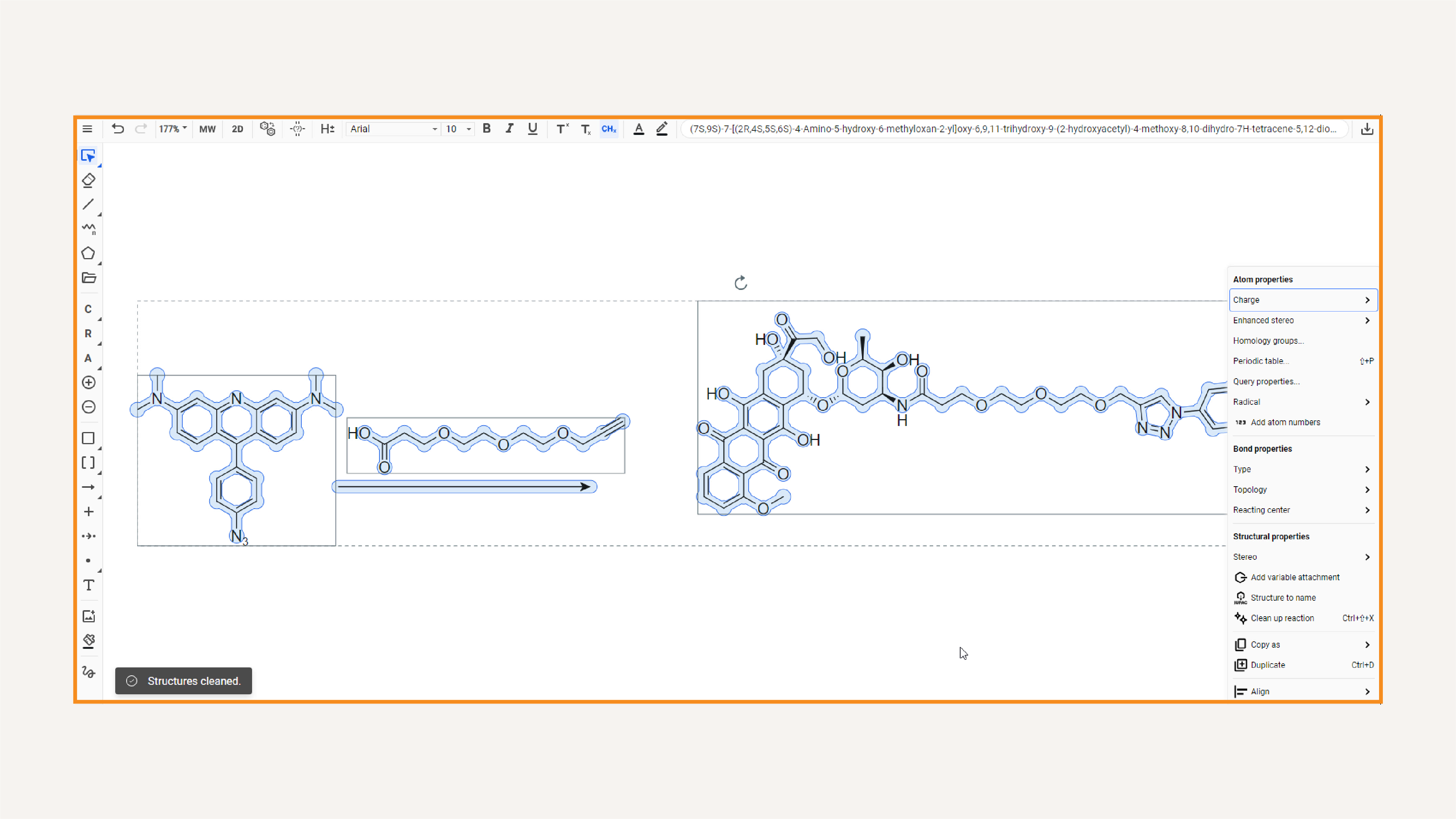
We know when you are drawing chemical structures, you want to get it done as fast as possible.
Marvin provides a clean UI, a universal search bar, familiar shortcuts and instant conversion from name-to-structure to cut the learning curve and help you draw quickly.
One drawing tool for every need
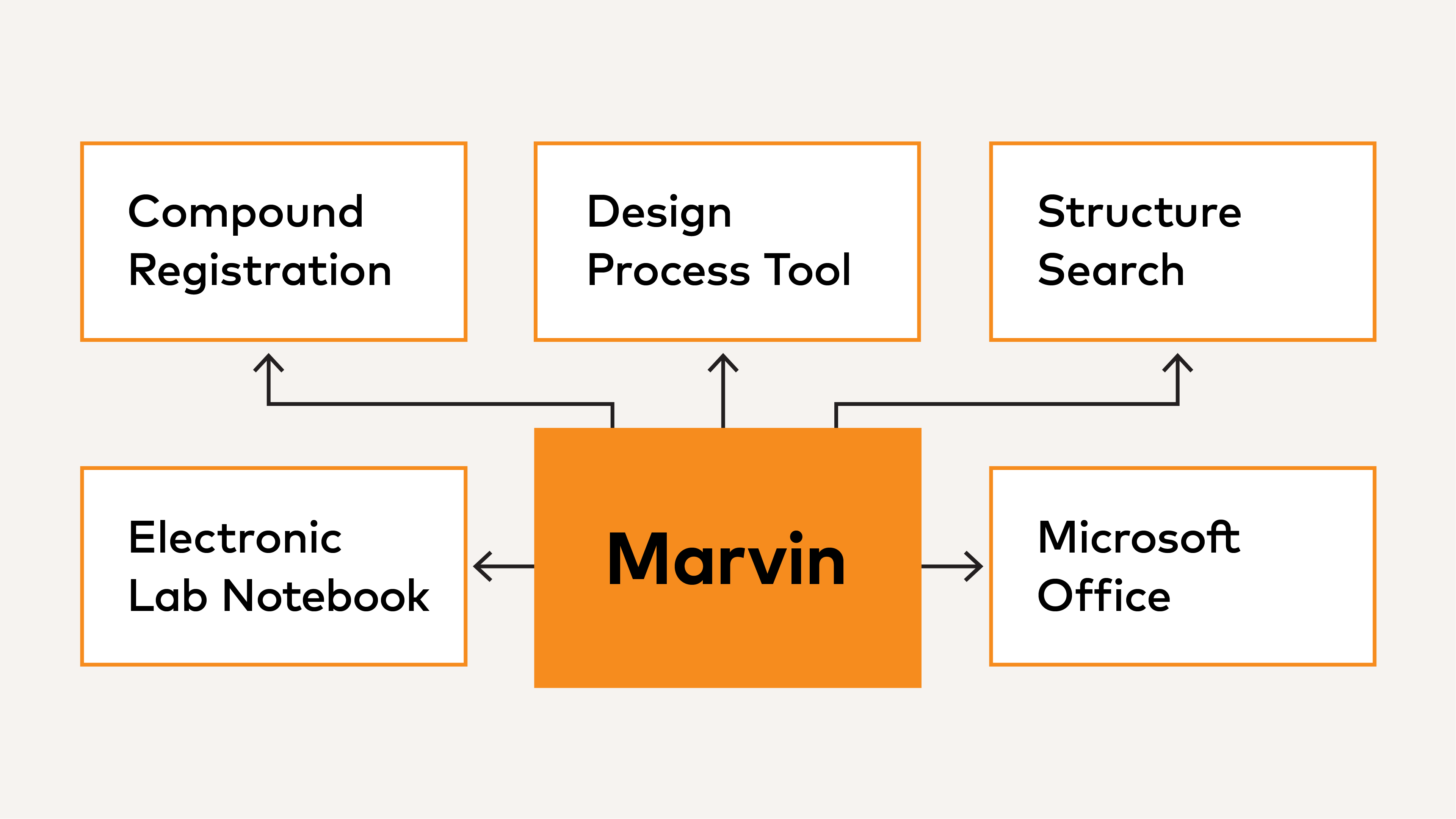
Stop wasting your energy switching between multiple drawing tools with different UIs.
Marvin is a web-based tool with the feature set to serve as your main chemical sketcher and the flexibility to integrate into any tool like your ELN or registration system at an enterprise-scale.
Maximum compatibility
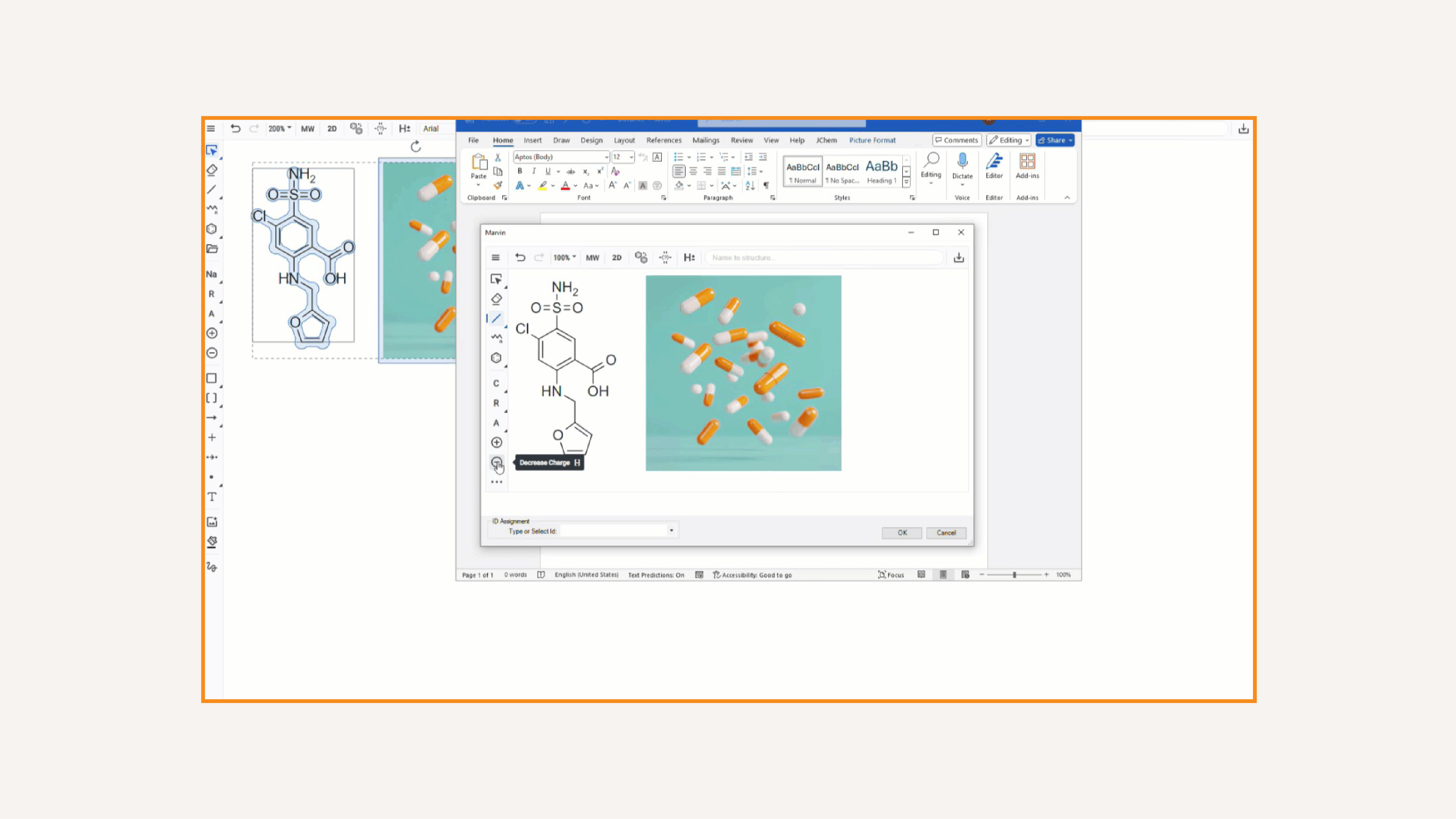
It can get frustrating to move data from one tool to another.
Marvin easily works with other tools supporting import and export in the most prevalent chemical data formats, and provides a seamless copy-paste experience to Microsoft Office allowing you to edit chemical data in your documents.
Scientific accuracy
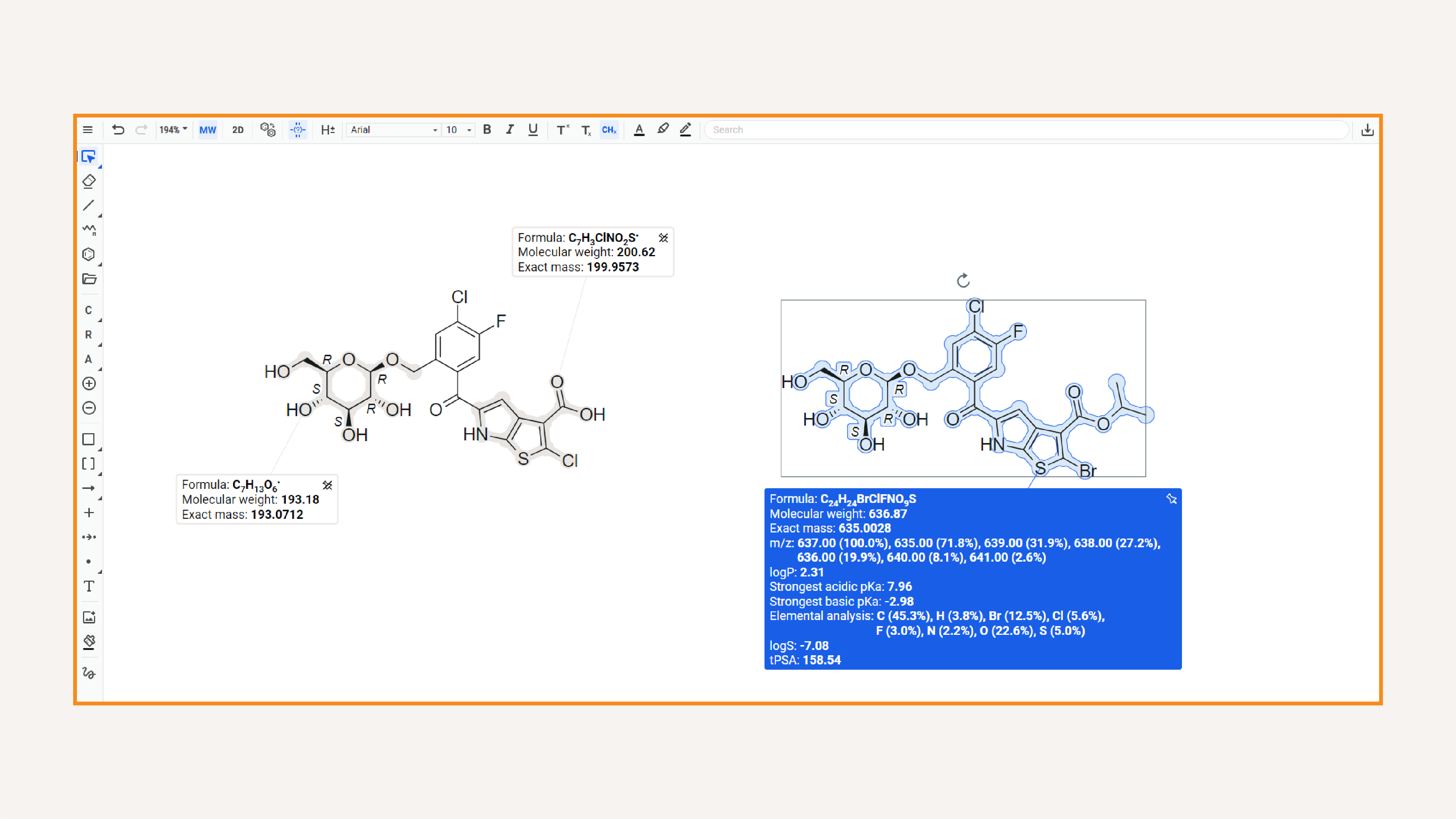
Scientific accuracy is table stakes when it comes to chemical drawing.
Marvin includes Chemaxon’s industry-standard chemical intelligence combined with modern UI features to catch errors, provide and track live calculations, reliably handle stereochemistry and more.
Unparallelled accessibility

Cheminformatics tools have been lagging behind other industries in accessibility.
Marvin is certified to partially meet AA level digital accessibility conformance by WCAG 2.2 providing features like screen reader support and keyboard navigation with active development to reach full certification.
Publication-worthy visualization
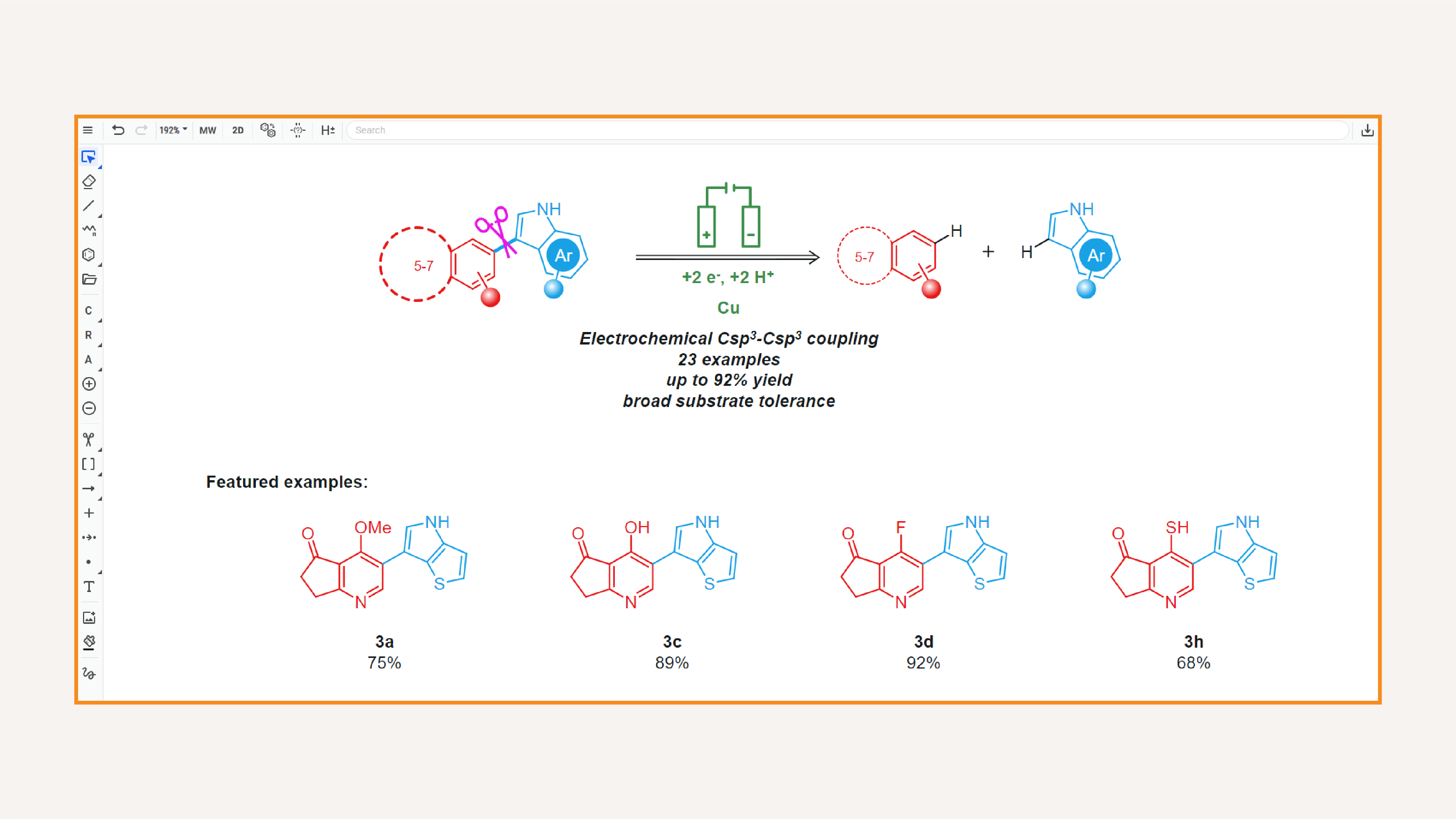
It gets time-consuming to keep restyling your structures for presentations and publications.
Marvin gives you options to make eye-catching chemical drawings like a built-in coloring tool and various shapes, and allows you to apply preset journal styles with a few clicks.

Search bar
Marvin comes with a universal search bar to make features, templates, tools, functional groups and conversion from name to structure easily accessible. Whatever you need, you will find it in seconds.

Integration capabilities
Marvin is a web-based tool that can integrate into other tools like ELNs and compound registration systems. Enjoy the same clean UI and rich feature set in every workflow.

Office support
Marvin integrates with Microsoft Office to give you a seamless copy-paste experience. Move quickly and keep editing your chemical data in Word and PowerPoint documents.

File conversions
Marvin supports importing and exporting data in most prevalent chemical formats and Chemaxon’s own CXON, built for storing chemical and graphical content and moving it online.

Live calculations
Marvin provides you with a calculation box feature that updates live as you highlight elements. You can also pin boxes to your canvas to keep track of results.

Advanced stereochemistry handling
Marvin supports MDL compatible molecule and atomic-level stereochemistry handling. Choose from various molecule level flags and enhanced stereochemistry labels and calculate CIP stereodescriptors.

NMR predictor
Marvin offers an accurate and realistic NMR predictor, which helps you efficiently interpret the 1H and 13C NMR spectral data of your compounds.

Keyboard shortcuts
Marvin allows you to use keyboard shortcuts to access any feature you may need set up in a way to feel familiar for industry veterans. These support accessibility and allow you to draw quickly.